Deploying Large Language Models (LLMs) locally usually requires heavy, expensive desktop graphics cards. However, if you have an AMD-powered mini PC lying around—like the Minisforum UM690 featuring a Ryzen 9 6900HX and integrated Radeon 680M graphics—you can convert it into a quiet, efficient, dedicated AI server for your local network.
Many developers try to host local models on an entry-level or older gaming laptop equipped with a dedicated NVIDIA card (like an RTX 3050 or 1650). However, these laptops are often crippled by a restrictive 4GB VRAM limit, which forces the LLM to overflow into system RAM, slowing generation speeds to an unusable crawl. By contrast, an AMD Mini PC utilizes a Unified Memory Architecture (UMA). By adjusting a simple BIOS setting, you can allocate 8GB or more of your system RAM directly to the integrated Radeon 680M iGPU. This provides a significantly larger, unified canvas capable of holding modern 3B and 8B models entirely in graphics memory without hitting local VRAM ceilings.
This guide covers how to securely host Ollama on Arch Linux, configure it to run stable hardware acceleration via Vulkan, apply strict local firewall restrictions, and seamlessly connect it to your Windows development machine using the VS Code Continue extension.
The Core Pitfall: ROCm vs. Vulkan on Integrated Graphics
By default, Ollama attempts to use AMD’s official ROCm framework for discrete
graphics. On integrated chips (iGPUs) like the Radeon 680M, developers often use
the hardware spoofing trick: HSA_OVERRIDE_GFX_VERSION=10.3.0.
The Problem: On rolling-release setups like Arch Linux running modern 6.x+
kernels, this spoofing trick can cause unstable kernel panics, CPU soft lockups
(BUG: soft lockup - CPU stuck), and complete network drops.
The Fix: Disable ROCm spoofing entirely and leverage the stable, native Vulkan driver ecosystem instead.
Step 1: Securely Configure Ollama on Linux
Instead of letting Ollama listen on all interfaces (0.0.0.0), we want our
server to bind exclusively to its assigned local IPv4 address or hostname. This
relies on network segmentation to block the public internet entirely.
Open the systemd configuration file on your Arch host:
sudo systemctl edit ollama.service
Paste the following environment configuration block.
[Service]
# Clear the default environment variable and startup lines
Environment="OLLAMA_ORIGINS=*"
Environment="OLLAMA_NUM_PARALLEL=1"
Environment="OLLAMA_VULKAN=1"
ExecStart=

# Dynamically grab the first assigned DHCP IPv4 address
ExecStart=/bin/sh -c 'OLLAMA_HOST="$$(hostname -I | awk "{print $$1}"):11434" exec /usr/bin/ollama serve'
Save and exit, then grant the ollama user the correct hardware rendering
permissions:
sudo usermod -aG video,render ollama
Step 2: Install and Verify Vulkan Drivers
Install the native AMD Vulkan packages and utilities via pacman:
sudo pacman -S vulkan-radeon vulkan-tools nvtop --needed
Reload the service configuration daemon to spin up the changes:
sudo systemctl daemon-reload
sudo systemctl restart ollama
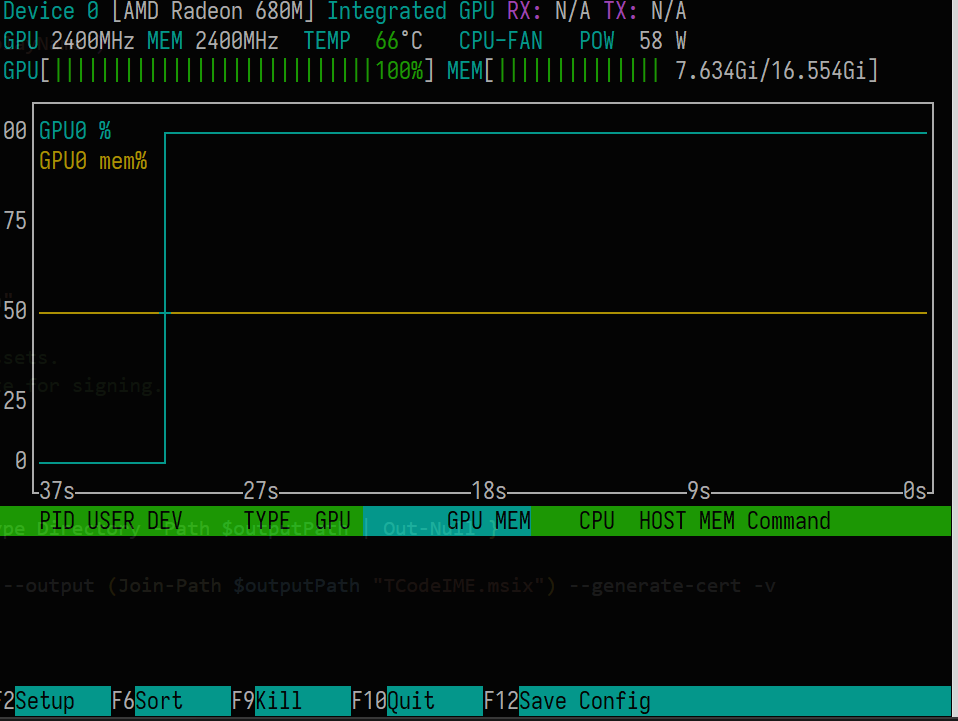
To verify the engine is capturing your iGPU layers correctly, monitor tasks in
real-time by launching the nvtop process tracker during an active prompt
request. If configured correctly, ollama ps will show the model loading onto
the GPU, and your Ryzen CPU utilization will remain perfectly stable.
Step 3: Zero-Trust Isolation with nftables
While binding to a local hostname protects you from the outside internet, it leaves Ollama completely exposed to any other device sharing your local Wi-Fi or LAN subnet. Because Ollama lacks built-in authentication layers, a rogue device on your network could easily hijack your resources.
To turn this into a true zero-trust setup, deploy nftables on your Arch server
to restrict port 11434 strictly to your primary Windows development machine’s
IP address (e.g., 192.168.1.50 or hostname):
Open /etc/nftables.conf and update your filter table:
table ip filter {
    chain input {
        type filter hook input priority 0; policy accept;

        # Allow only your specific Windows client PC to access Ollama
        ip saddr 192.168.1.50 tcp dport 11434 accept
        tcp dport 11434 drop
    }
}
Enable and restart the firewall service:
sudo systemctl enable --now nftables
sudo systemctl restart nftables
Step 4: Connect Your VSCode Client
Newer versions of the VS Code Continue extension have shifted away from
standard .json formats and require a valid, top-level metadata config.yaml
file.
Open your Continue settings panel inside VS Code and replace the contents
entirely with this schema layout to route requests over the local area
network(update your OLLAMA_HOSTNAME placeholder):
name: Remote Ollama Configuration
version: 1.0.0
schema: v1

models:
  - name: "Qwen 3B (Remote)"
    provider: "ollama"
    model: "qwen2.5:3b"
    apiBase: "http://OLLAMA_HOSTNAME:11434"
    contextLength: 4096
    roles:
      - chat
      - edit

tabAutocompleteModel:
  name: "Qwen Coder 1.5B"
  provider: "ollama"
  model: "qwen2.5-coder:1.5b"
  apiBase: "http://OLLAMA_HOSTNAME:11434"
  roles:
    - autocomplete
💡 Architectural Note: You do not need to install Ollama on your local development machine. The VSCode Continue extension communicates directly with your remote mini-PC using standard network API calls, saving your local laptop’s battery and RAM entirely!
For integrated memory pools, keeping the autocomplete configuration to a lightweight 1.5B or 3B model keeps typing execution speeds completely instant without lagging out your local text cursor.
You can also configure the contextLength based on your shared memory size.
While qwen2.5:3b can technically scale up to a 32,768 token memory window,
increasing this value forces the model to allocate significantly more matrix
space in your shared system RAM. For an integrated GPU setup, finding the right
sweet spot is critical to avoid cursor lag in VSCode.
| Context Size | Code Capacity | Shared VRAM | Typing Performance | Best Use Case |
|---|---|---|---|---|
| 2048 | ~3-4 small files | ~2.1 GB | 🚀 Blazing Fast | Quick snippets & unit tests |
| 4096 (Default) | ~8-10 average files | ~2.4 GB | ⚡ Very Snappy | Standard daily coding & chat |
| 8192 | ~20 source files | ~3.1 GB | 🐢 Minor Lag | Multi-file refactoring tasks |
| 16384 | Full API schemas | ~4.4 GB | ⚠️ Higher Latency | Reading massive context / logs |
Recommendation: For the best balance of speed and utility on the Minisforum
UM690, stick to 4096 for your active autocomplete settings, and only scale
up to 8192 or 16384 in your main chat window if you are feeding the
AI larger codebase dependencies.
Conclusion
By avoiding ROCm software with fragile hardware spoofing and leveraging native Vulkan bindings, a Linux mini PC transforms into an incredibly reliable, secure local inference engine. You keep sensitive code on your private network, free up your laptop’s computing power, and build a powerful homelab copilot instance for zero subscription costs.